Showing posts with label Windows 7. Show all posts

3 Mar 2013

[Solved] How to modify the hosts file in Windows

configuracion15As the Wikipedia tells us, The hosts file is a computer file used by an operating system to map hostnames to IP addresses. The hosts file is a plain text file, and is conventionally named hosts.

Although this is not its only use.

Give the fact that the operating system gives priority to this file, we can then use it to our advantage to either "re-direct" or "block" an internet address.

A clear example in which is necessary to know how to modify the hosts file is on our guide to solve the error 3194 on iTunes.

Below you can see an example of the hosts file in Windows.
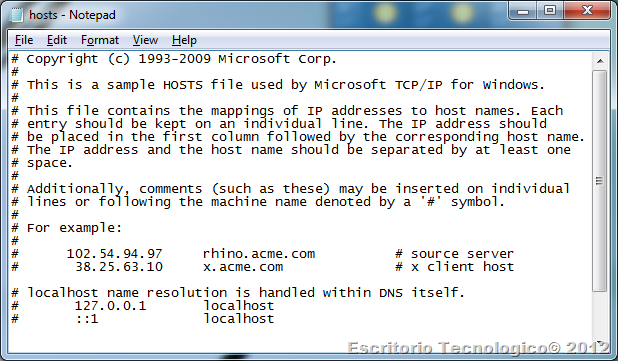
How to modify the hosts file in Windows

Where can I find the hosts file in Windows?

Luckily the location of the hosts file in Windows has not changed much in recent years.

The location of the hosts file in Windows 8, Windows 7, Windows Vista, Windows XP is:

(Assuming that Windows is installed on the C: drive)

C:/Windows/System32/drivers/etc/hosts

The location of the hosts file in Windows NT/2000 is:

C:/WINNT/System32/drivers/etc/hosts

Lastly, The location of the hosts file in older operating systems like Windows 95, Windows 98 o Windows ME is:

C:/Windows/hosts

How to modify the hosts file in Windows.

For Windows XP and earlier:

You just need to open the hosts file with a text editor like Notepad and that’s it.

For Windows 8, Windows 7 and Windows Vista:

You will need to open your text editor as administrator. Just right click on it and select “Run as administrator”
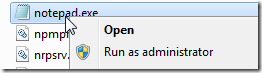
how to modify the hosts file

You will need to watch the video in 1080p so you can catch all the details. Otherwise is rather blurry.

Hopefully this helped you. Good Luck! – By Lone Ranger

[Related Articles]

3 Jan 2013

[Solved] How to format to FAT32 on Windows 7 and Vista

microsoft-windows-logo

You might have been surprised when you tried to use an NTFS formatted drive with your PlayStation 3 or XBOX 360…

Long story short, these only work with FAT32 formatted drives.

The Issue

In Windows Vista and Windows 7 you can only select NTFS y exFAT when formatting a hard drive. I tried using exFAT but it was still not recognised by the PS3.

The Solution

Note: This solution also applies to Windows 8. Although I don’t know if Windows 8 allows formatting to FAT32 without 3rd party programs.

Well… there are several ways to go about this, but I’ll start with the easiest one in my opinion. Enter FAT32 Format. This is a portable app so we won’t need installation.

Here’s a direct download link just in case there’s an issue with the author’s website.

On the screenshot below we can see the interface for FAT32 Format. it’s really quite simple.

  1. Pick the drive you want to format to FAT32.
  2. Leave “Allocation unit size” on its default unless you know you need something else.
  3. “Volume Label” Write a name for the drive. Any name will do.
  4. Pick “Quick Format” to save some time.
  5. Then finally click “Start”  and wait.

FAT32 Format

As I was saying before there are also some other ways to do it so here’s a list of them in case you need more than just this application.

  • Use “Command Promt” and type:  “format /FS:FAT32 X:” where X: is the drive letter of the drive you want to format..
  • Use a startup disk and use the same command.
  • Use other 3rd party software like SwissKnife or Fat32Formatter which are very similar to FAT32 Format. 

Hopefully this helped you. Good Luck! By – By Lone Ranger.